
Image Format Converter
Convert images to 10 formats: JPG, PNG, WEBP, AVIF, GIF, BMP, TIFF, ICO, PDF and SVG. Your files never leave your device.
About Image Format Converter
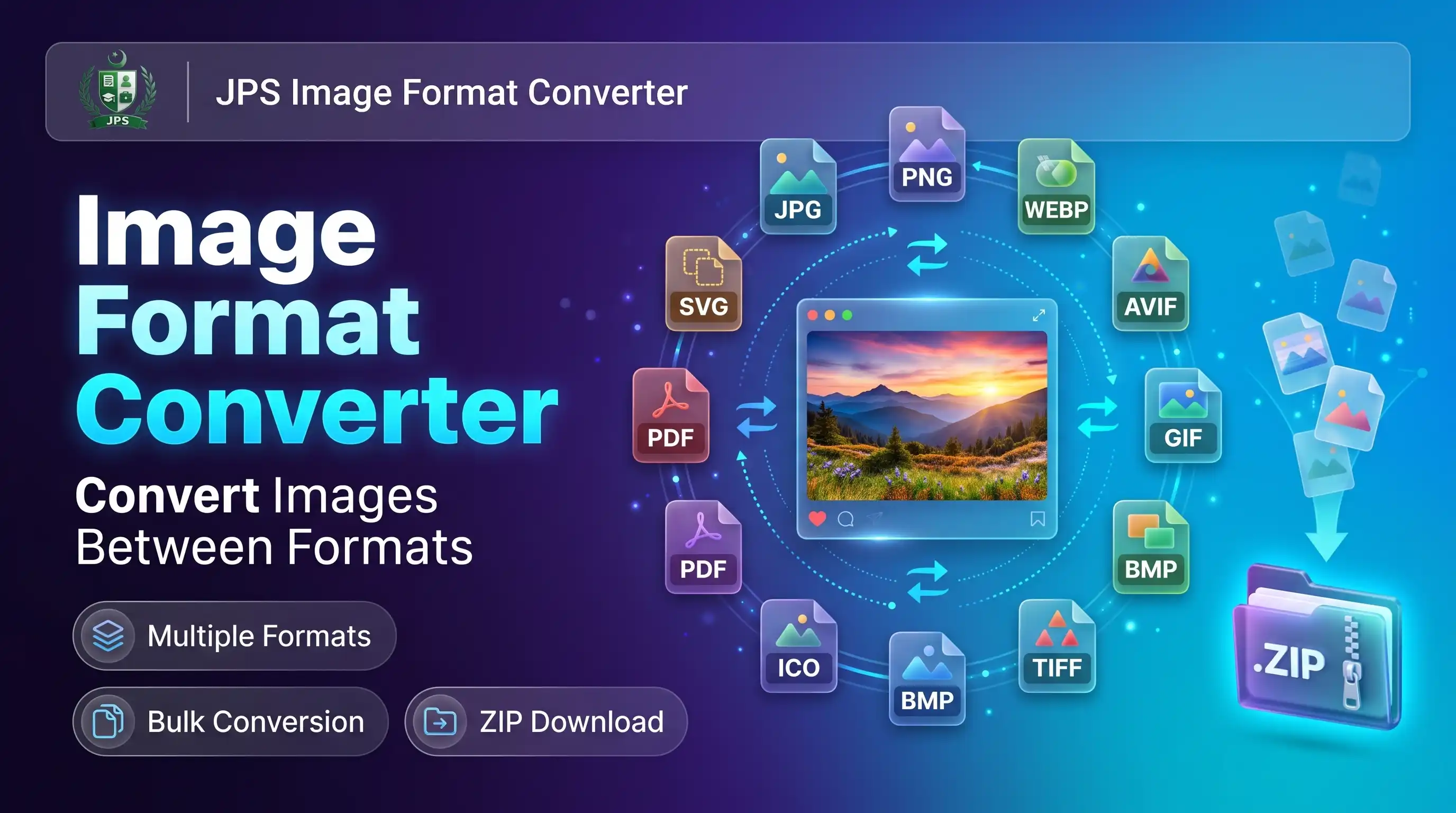
The Image Format Converter changes pictures between ten formats: JPG, PNG, WEBP, AVIF, GIF, BMP, TIFF, ICO, PDF and SVG. You can convert many files at once and download them one by one or as a ZIP. It also opens iPhone HEIC photos, GIF, BMP and ICO files as input.
Each format has its own options. JPG, WEBP and AVIF have a quality slider and an optional KB limit, formats without transparency get a background colour, GIF has a smoothing option, and ICO lets you choose icon sizes for a favicon. Everything runs in your browser and nothing is uploaded.
Key features
- 10 output formats: JPG, PNG, WEBP, AVIF, GIF, BMP, TIFF, ICO, PDF and SVG
- Bulk conversion of up to 30 files with ZIP download
- Quality slider and maximum KB for JPG, WEBP and AVIF
- Background colour for transparent areas when the format has no transparency
- ICO with favicon sizes (16, 32, 48 px) or all sizes up to 256 px
- Formats that your browser cannot create are greyed out instead of failing
Which format should I choose?
| Format | Best for | Transparency |
|---|---|---|
| JPG | Photos and forms with a KB limit | No |
| PNG | Logos, screenshots and text | Yes |
| WEBP | Small web images | Yes |
| AVIF | Smallest web images (some browsers only) | Yes |
| GIF | Simple graphics with few colours | Simple (on or off) |
| BMP | Old software, no compression | No |
| TIFF | Scanning, printing and archives | No |
| ICO | Favicons and Windows icons | Yes |
| One image on one PDF page | No | |
| SVG | Picture placed inside an SVG file | Yes |
Most government job portals accept JPG and PDF only. Always follow the format written in the advertisement.
When do you need this?
- A portal accepts only JPG and your picture is PNG, WEBP or HEIC
- You need a favicon (ICO) for a website from your logo
- You need one image inside a PDF file
- You want an uncompressed BMP or TIFF for old software or printing
Common mistakes to avoid
- Converting a logo with transparency to JPG and getting a white box; pick the right background colour
- Expecting SVG output to become vector shapes; it only places the picture inside an SVG file
- Using GIF for photos, which limits them to 256 colours
- Saving a photo as BMP or TIFF and being surprised by the very large file size
How to use
- Select one or more images (JPG, PNG, WEBP, HEIC, GIF, BMP, ICO and more).
- Choose the output format from the list.
- Set the options that appear for that format (quality, background colour, maximum KB, icon sizes).
- Press Convert and download each file or all of them as a ZIP.
اردو میں طریقہ:
- ایک یا زیادہ تصاویر منتخب کریں (JPG, PNG, WEBP, HEIC, GIF, BMP, ICO وغیرہ)۔
- فہرست سے آؤٹ پٹ فارمیٹ چنیں۔
- فارمیٹ کے مطابق ظاہر ہونے والی آپشنز سیٹ کریں (کوالٹی، بیک گراؤنڈ، زیادہ سے زیادہ KB، آئیکن سائز)۔
- "Convert" دبائیں اور فائلیں الگ الگ یا ZIP میں ڈاؤن لوڈ کریں۔
Tips
Use JPG for photos and for forms that ask for a KB limit; PNG for logos and screenshots.
PNG to JPG fills transparent areas with the background colour you pick (white by default).
ICO makes a favicon or Windows icon; choose "Favicon" sizes for websites.
TIFF and BMP files are very large because they are not compressed.
HEIC (iPhone) photos can be converted to any of these formats.
Frequently Asked Questions
JPG, PNG, WEBP, AVIF, GIF, BMP, TIFF, ICO, PDF and SVG. WEBP and AVIF depend on your browser; unsupported ones are greyed out.
Select the PNG, choose JPG as the output, pick a background colour and press Convert.
Yes. Choose ICO and the Favicon sizes (16, 32 and 48 px). A square logo works best.
No. The picture is placed inside an SVG file. Real vector tracing needs a different tool.
Yes. Select the HEIC photo and choose JPG.
No. Everything is processed in your browser.
 EasyPaisa
 Jazz Cash
 Meezan Bank
 Faysal Bank